Rezolve AI Integration
Rezolve’s AI platform specialises in conversational commerce, offering product-based recommendations and contextual data for a richer user experience. Once you set up this integration, your Rezolve Point SDK-enabled app can request real-time commerce intelligence, stream dynamic responses, and incorporate product data into chat sessions.
Prerequisites
- Rezolve AI Account: Make sure you have an active Rezolve account and have access to your API Key and Endpoint. You can learn more at Rezolve’s website.
- Admin Account: You’ll need sufficient permissions in Canvas to manage integrations (e.g., Admin role).
Setting Up Rezolve AI
Follow these steps to connect your Rezolve API Key and Endpoint:
Log in to Canvas
Sign in to your Rezolve Canvas dashboard using your admin credentials.
Navigate to Integrations
From the side menu, select Integrations. You’ll see a list of available third-party integrations.
Select Rezolve
Locate Rezolve in the list. Click Set Up (or Configure) to open the setup screen.
Enter Your Rezolve API Credentials
- API Endpoint: The base URL provided by Rezolve (e.g.,
https://brain-api.rezolve.com/rezolve-ai). - API Key: Your unique key associated with the Rezolve account.
- API Endpoint: The base URL provided by Rezolve (e.g.,
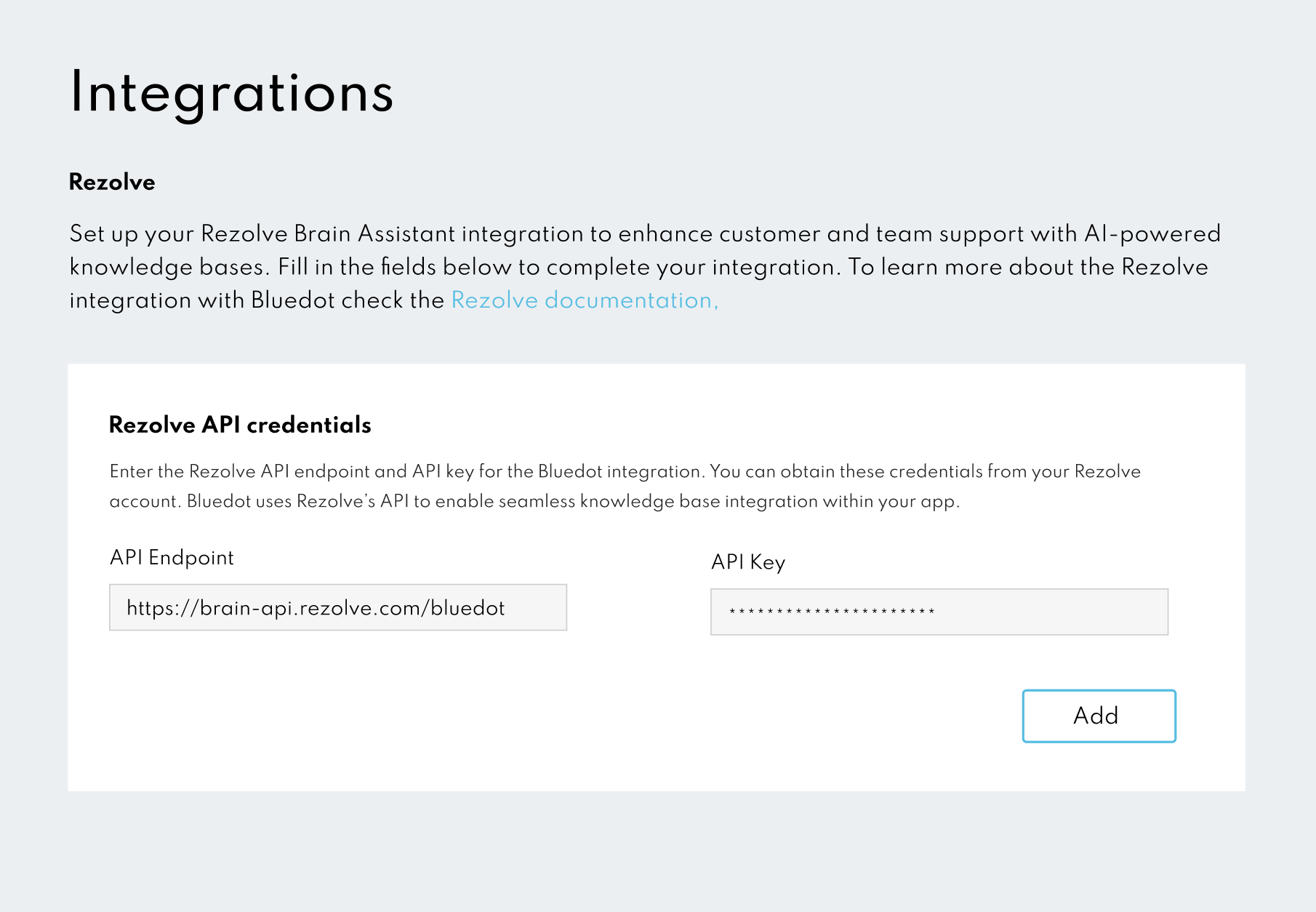
Click “Add”
Once both fields are complete, click Add. Canvas will validate your credentials with Rezolve AI. If successful, you’ll see a confirmation message or status indicator showing that Rezolve AI is connected.
Using Rezolve AI in Your App
After the integration is successful in Canvas, check out our Quickstart guide to learn how to create a chat session, send messages, and display the real-time product contexts returned by Rezolve AI.